> ## Documentation Index
> Fetch the complete documentation index at: https://crewai-docs-freeze-v1-15-1.mintlify.site/llms.txt
> Use this file to discover all available pages before exploring further.
# Update Crew
> Updating a Crew on CrewAI AMP
After deploying your crew to CrewAI AMP, you may need to make updates to the
code, security settings, or configuration. This guide explains how to perform
these common update operations.
## Why Update Your Crew?
CrewAI won't automatically pick up GitHub updates by default, so you'll need to manually trigger updates, unless you checked the `Auto-update` option when deploying your crew.
There are several reasons you might want to update your crew deployment:
* You want to update the code with a latest commit you pushed to GitHub
* You want to reset the bearer token for security reasons
* You want to update environment variables
## 1. Updating Your Crew Code for a Latest Commit
When you've pushed new commits to your GitHub repository and want to update your deployment:
1. Navigate to your crew in the CrewAI AMP platform
2. Click on the `Re-deploy` button on your crew details page
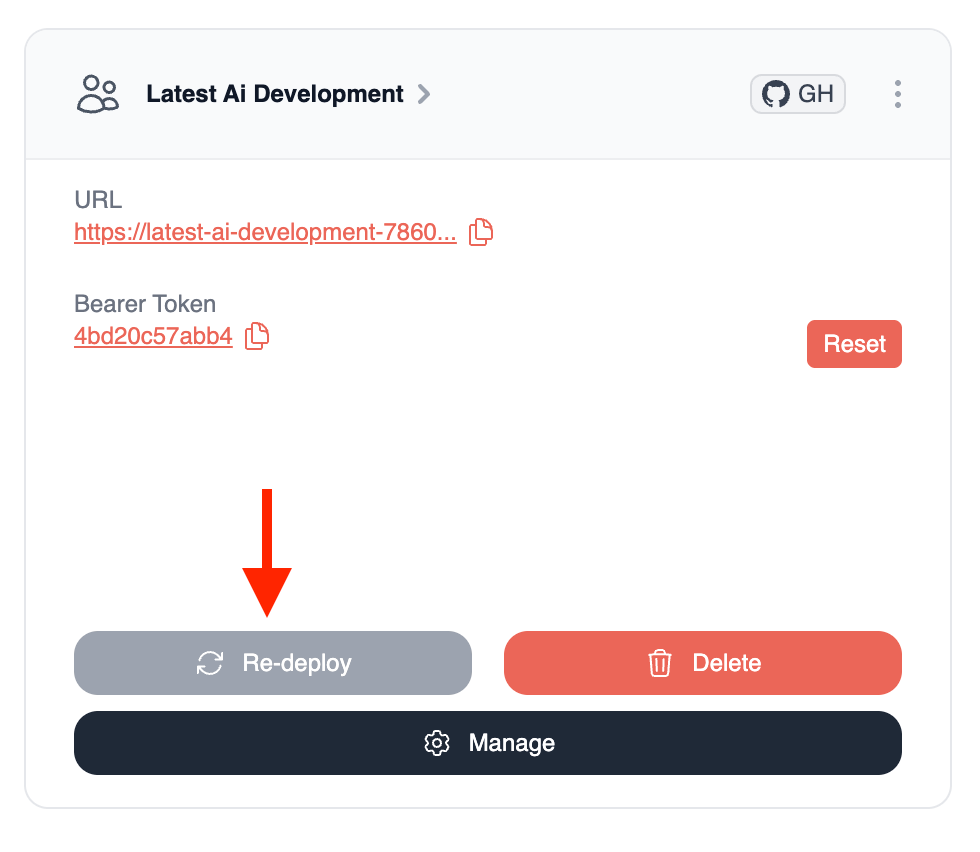 This will trigger an update that you can track using the progress bar. The system will pull the latest code from your repository and rebuild your deployment.
## 2. Resetting Bearer Token
If you need to generate a new bearer token (for example, if you suspect the current token might have been compromised):
1. Navigate to your crew in the CrewAI AMP platform
2. Find the `Bearer Token` section
3. Click the `Reset` button next to your current token
This will trigger an update that you can track using the progress bar. The system will pull the latest code from your repository and rebuild your deployment.
## 2. Resetting Bearer Token
If you need to generate a new bearer token (for example, if you suspect the current token might have been compromised):
1. Navigate to your crew in the CrewAI AMP platform
2. Find the `Bearer Token` section
3. Click the `Reset` button next to your current token
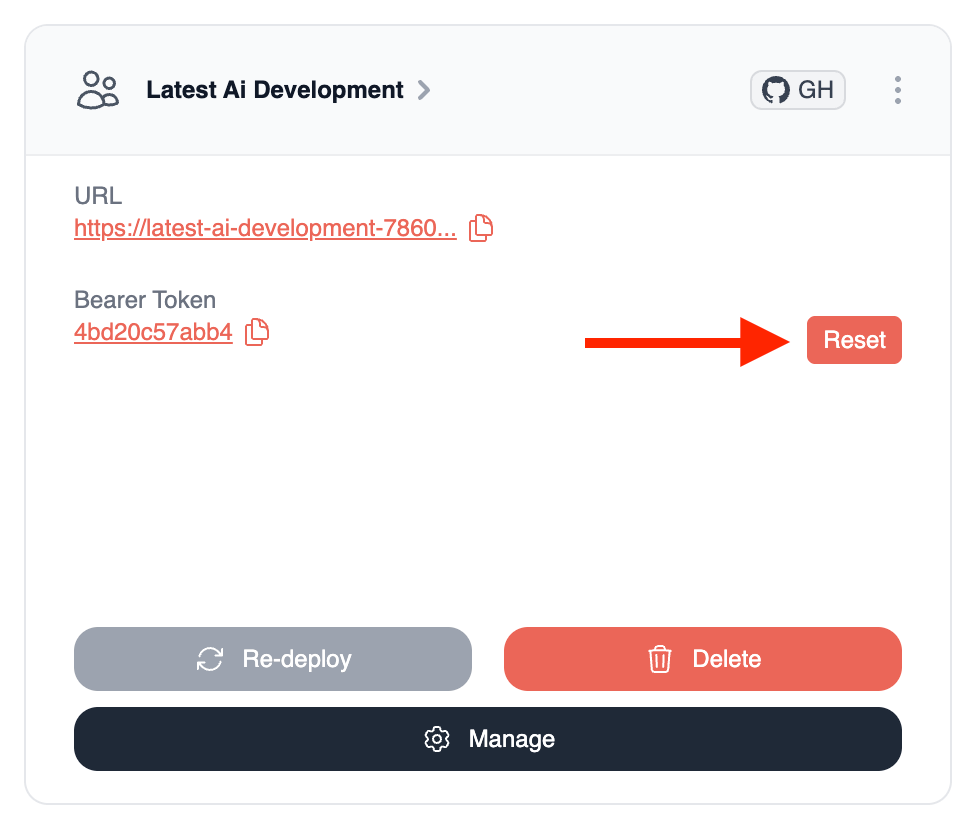 Resetting your bearer token will invalidate the previous token immediately.
Make sure to update any applications or scripts that are using the old token.
## 3. Updating Environment Variables
To update the environment variables for your crew:
1. First access the deployment page by clicking on your crew's name
Resetting your bearer token will invalidate the previous token immediately.
Make sure to update any applications or scripts that are using the old token.
## 3. Updating Environment Variables
To update the environment variables for your crew:
1. First access the deployment page by clicking on your crew's name
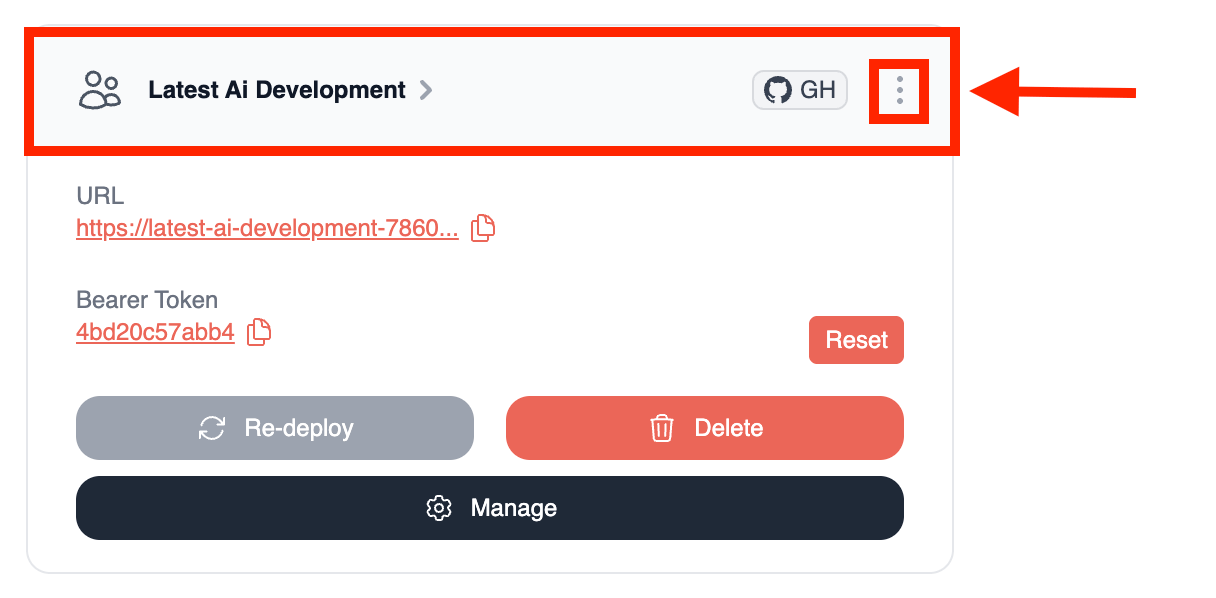 2. Locate the `Environment Variables` section (you will need to click the `Settings` icon to access it)
3. Edit the existing variables or add new ones in the fields provided
4. Click the `Update` button next to each variable you modify
2. Locate the `Environment Variables` section (you will need to click the `Settings` icon to access it)
3. Edit the existing variables or add new ones in the fields provided
4. Click the `Update` button next to each variable you modify
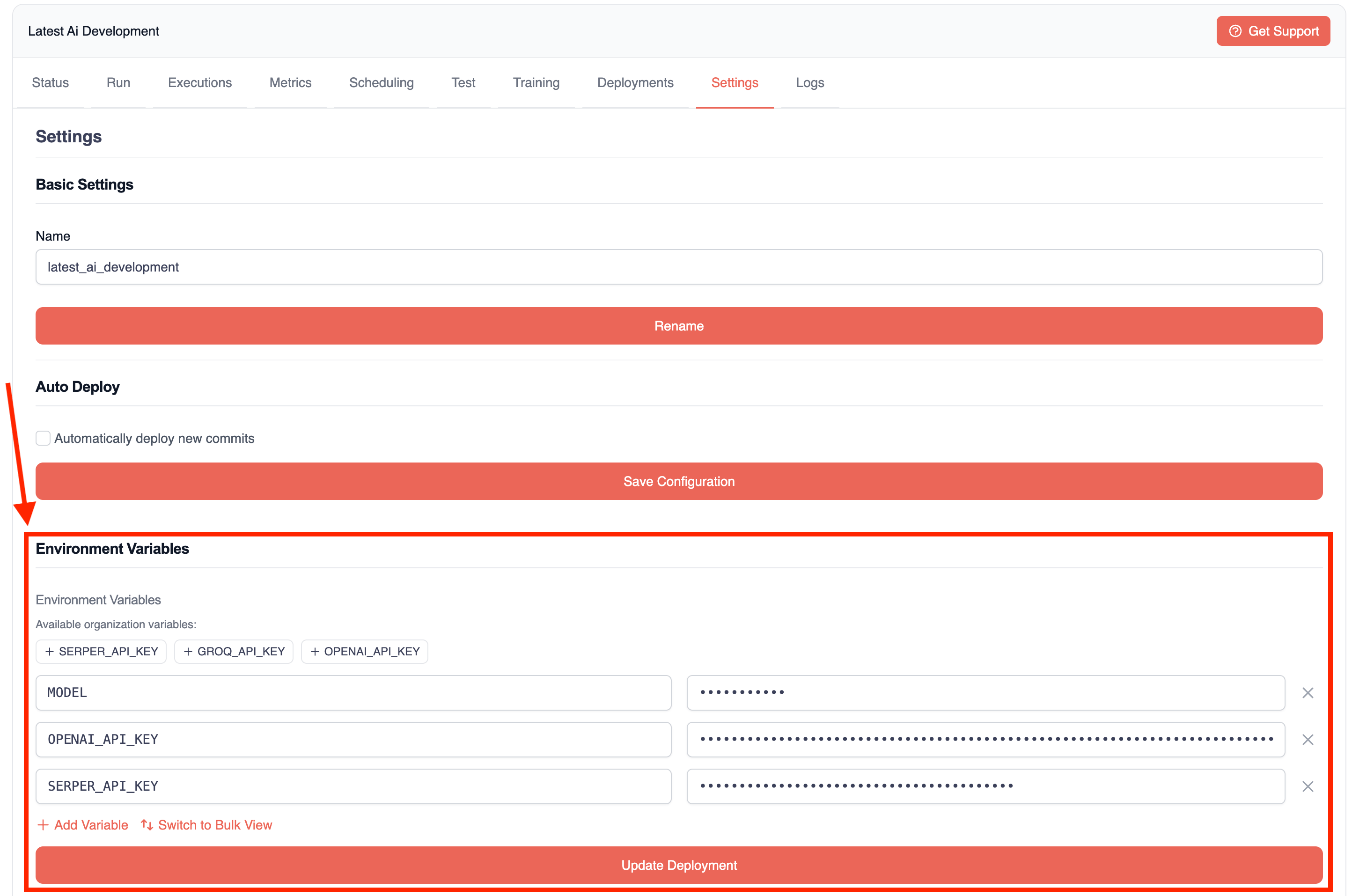 5. Finally, click the `Update Deployment` button at the bottom of the page to apply the changes
Updating environment variables will trigger a new deployment, but this will
only update the environment configuration and not the code itself.
## After Updating
After performing any update:
1. The system will rebuild and redeploy your crew
2. You can monitor the deployment progress in real-time
3. Once complete, test your crew to ensure the changes are working as expected
If you encounter any issues after updating, you can view deployment logs in
the platform or contact support for assistance.
Contact our support team for assistance with updating your crew or
troubleshooting deployment issues.
5. Finally, click the `Update Deployment` button at the bottom of the page to apply the changes
Updating environment variables will trigger a new deployment, but this will
only update the environment configuration and not the code itself.
## After Updating
After performing any update:
1. The system will rebuild and redeploy your crew
2. You can monitor the deployment progress in real-time
3. Once complete, test your crew to ensure the changes are working as expected
If you encounter any issues after updating, you can view deployment logs in
the platform or contact support for assistance.
Contact our support team for assistance with updating your crew or
troubleshooting deployment issues.